
Videos
You can embed videos to Text Areas, Cards, and Media w/Caption paragraph types. You can embed videos directly into your webpage, rather than sharing the link. This keeps site visitors on your website instead of sending them to YouTube or Vimeo.
Notes:
- Currently, only videos hosted on YouTube or Vimeo can be embedded.
- If you wish to publish a video from an event, see adding videos & other components on the Event Page.
Accessibility & Tips for Captions Adding a video Toolbar Functionality Creating a YouTube Channel
Accessibility
To ensure all of your users can access your video content, you'll need proper captioning. Captions provide a text equivalent of the audio information in a video and are synchronized with the video presentation. Captions are an accessible alternative for individuals who cannot hear the content and include the dialogue, speaker information, and any sound effects present in the video.
Tips for Captions
- Include all spoken information as well as relevant parts of the soundtrack, like background noises such as applause, sound effects, speaker identification, and any audio cues that help the viewer understand the video.
- Captions should be in the same language as the primary audio content.
- Use proper punctuation and grammar.
Please visit the Office of Digital Accessibility for additional information about captions and audio descriptions.
Adding a Video
Text areas
To add a video to a text area:
Inside your text area, place your cursor where you want the video to be placed, then click the media icon

- Click on the Video tab
In the Add a Video URL field, paste the URL from the video here and click the Add button.
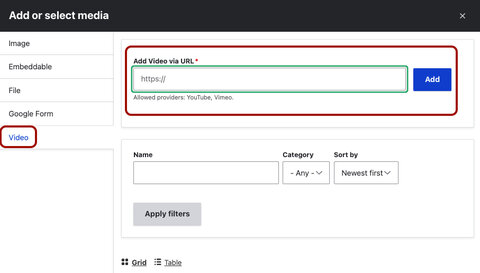
- The Name and Video URL fields will auto-populate. If you wish to change that, you can do that now.
- Ignore the Category dropdown.
Click Save and insert. (Saves to the media library and adds the video to your page.)
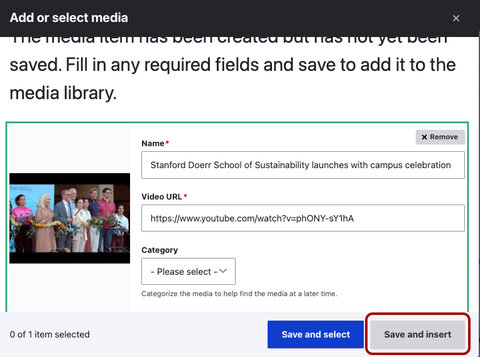
- The initial view of the video is very small, but once you save the page, it will appear larger.
Toolbar functionality
Your video will default to left alignment. To change this, click on the video to pull up the editing toolbar.
The toolbar will allow you to toggle the caption on/off, create a link, and adjust alignment. While the dropdown menu for sizing appears on a video, the only option at this time is full size.
Toggle caption on
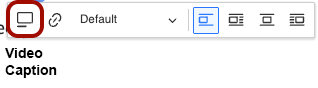
Toggling captions allows you to choose whether or not the image caption is visible on the screen. The caption will always be visible to users when users hover over the video, but this tool provides the option to control whether or not it is displayed outright.
Link Media
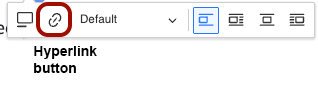
This is the hyperlink button, where you can add internal/external links to the embedded video.
Video Size
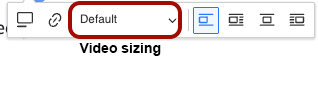
This usually contains sizing options. But for videos there is only the Default size.
Text Left or Center aligned
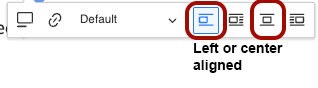
Select one of these options if you want your video to be shown on its own line, with text located above and below. This option aligns your media to the left or center.
Align video left or right & wrap text
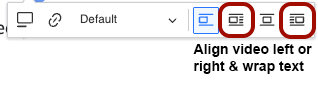
Select one of these options if you wish to have the page text wrap around your video. With this option, you can align your media to the left or right.
Creating a YouTube Channel
Learn how to create a YouTube channel for your lab or group so you can upload and categorize your videos. This covers creating the channel, adding users & setting the video visibility and includes links to Google for more information.