
Moving Content
Main content start
There are a couple ways to move content up & down or within columns on a page. By 1) using the arrows buttons or 2) drag & drop.
Using Arrow buttons
With the arrow buttons, you can:
- Move entire sections (rows) up & down.
- Move paragraphs up & down.
Sections/Rows
- Once you edit your basic page, hover over the section (row) you want to move.
- Click on the white arrows (inside the Layout with the blue background) to move that row up or down.
If the arrow is grayed out, that option is not available because it's most likely at the top or bottom of the page.

- The pencil icon allows you to edit the row properties (background color, number of columns, column layout).
- The copy icon allows you to duplicate that row as is to edit for other purposes.
- The garbage can will delete the entire row.
Paragraphs
Using Arrows to move items
- Once you edit your basic page, hover over the paragraph/component you want to move. (i.e. text area, card, etc.)
Click on the gray arrows at the top of the component to move them up or down.
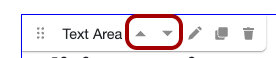
- If the arrow is grayed out (lighter gray), that option is not available because most likely there is nothing above or below.
Using drag & drop
For paragraphs (text area, cards, lists, etc.) you can also use drag & drop to move them around.
- As you hover over a paragraph your cursor will change to a hand. If you hold down your mouse, you can drag that component to another column or even another section (i.e. row).
Notes:
- You can use this feature to move components around the page so you don't have to re-create them.
- You can copy a component, move it, then edit it in another section.