
Images
Learn about image ratios and sizes, how to use images in text areas, centering, finding imported photos, and knowledge articles.
Banners Cards Images in Text Areas Focal Point Finding Images on your site Knowledge articles
Here are the recommended image ratios and sizes for optimal display within different paragraph types. Special sizing is particularly important for banners and cards, which are the most frequently used paragraph formats.
Banner Sizes & Ratios
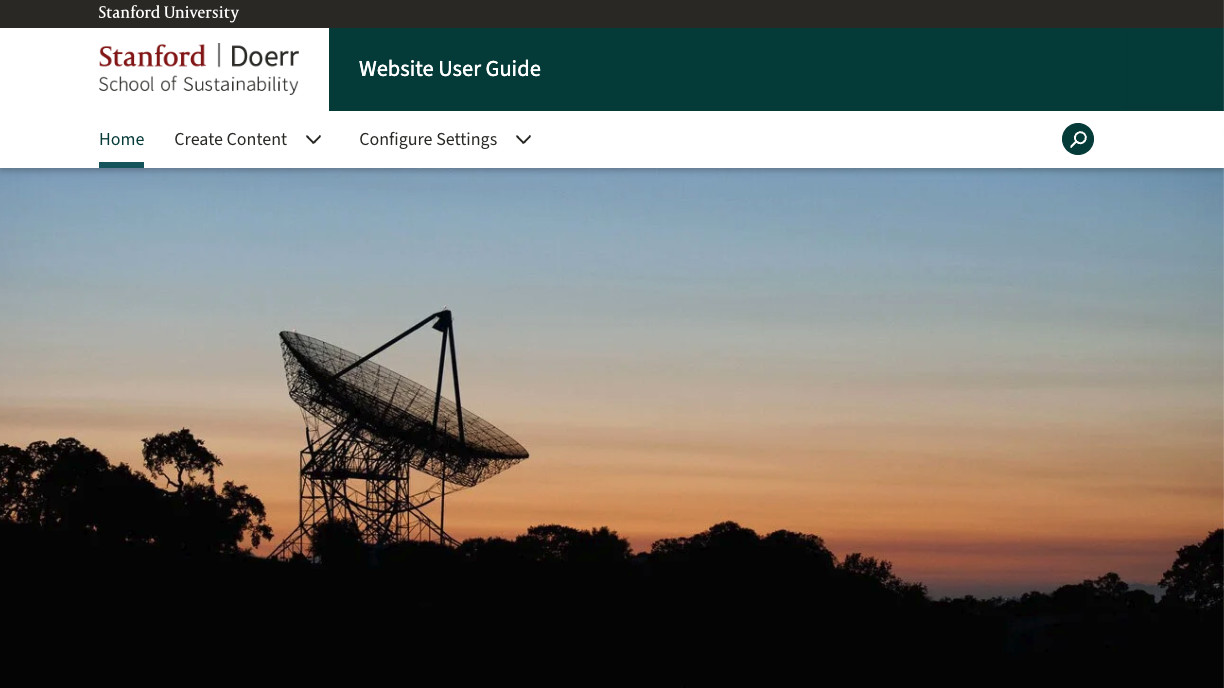
Default Banner
- Suggested pixel ratio: 1440 X 520px
- Approx 16:6 ratio
- Example Default Banner page


Cards
Card Image
- Suggested pixel ratio: 600X400
- Approx ratio 3:2

Images in Text Areas
Image size and image display options in a Text Area
For sizing, you can choose between Thumb, Circle, Medium, and Large. For shape, you can choose between uncropped, where the image retains its width, but the height is scaled down, or Square, where the image appears cropped in equal proportions top-bottom and left-right. These are the standard sizes when adding an image to a Text Area. You can also resize your images before uploading them to your site.
NOTE: Square Image Sizing: Selecting the square options will format your image with equal top-bottom and left-right dimensions. If the original image is not square, the center portion will be used with the edges cropped to fit the square format. However, if the focal point is moved off-center, the crop will adjust to ensure the focal point is included in the final image. Learn more about the focal point.
- Default. If you don't make any selection, your image will display at the full size of the image, scaled to fit the width of the text area. If the image's original width is smaller than the text area, it will display at its original size without scaling (i.e. it will not enlarge the image to fit the text area).
- Large (480px wide, uncropped.) This will resize the image to 480px wide, only if it is larger than that size. It will not crop the height of the image.
- Large square (480px, cropped.) This will resize the image to 480px wide by 480px high, only if it is larger than that size.
- Medium (220px wide, un-cropped.) This will resize the image to 220px wide, only if it is larger than that size. It will not crop the height of the image.
- Medium square (220px, cropped.) This will resize the image to 220px wide by 220px high, only if it is larger than that size.
- Circle headshot (112px, cropped.) This will resize the image to 112px wide by 112 high, only if it is larger than that size. It will display as a circle. This is primarily used for displaying profile photos for people.
- Thumb (100px, cropped.) This will resize the image to 100px wide by 100px high, only if it is larger than that size.
- Thumb (100px, un-cropped.) This will resize the image to 100px wide, only if it is larger than that size. This is a great image size for displaying logos for affiliated groups.
Image Focal Point (centering)
How to center your photos without cropping.
Each image that is imported into a website has what's called a Focal Point. The focal point is where the main focus of the image should be. You can use this to update the central focus of most photos.
Notes:
- If there is enough extra space in an image (i.e. the center you want to focus on is not too close to any sides of a photo), you can use the focal point feature to better center your photos. This may save you the time & effort of cropping a photo, but sometimes it may still be necessary.
This is particularly helpful for newly imported People images.
There are two ways to work with the focal point.
When adding a new photo Editing an existing photo
Adding a new photo
When you are uploading a new photo to your website, before you Save & Insert, you can use the focal point (which is the + sign you see in the center of the photo - see below) to center your photo.

You can drag the + sign around the photo thumbnail to center it before importing. For a persons photo, if you place the + sign in the center of their face, that is the best place to center their photo.
Then, once you click Save & Insert, the photo will save with the focal point/+ sign where you placed it.
Editing an existing photo
You can move the focal point (i.e. + sign) on an image that has already been imported.
Notes:
If you move the focal point for an existing image, this will also change the focal point for all instances of this photo on the website.
If you want to have a different focal point for the same image, upload the image again, and update the focal point. (You might also want to rename the photo to reflect this is a different version).
- Go to All Content > All Media
- Search for the media Name or scroll through to find your photo.
- Edit your photo (far right side).
In the center of the image is a plus sign (+). As you hover + click on the plus sign, you can move it to the center of focus in that image.
- For example in the image below, if you want the globe in the persons hand to be the focal point, move the + sign over the globe. The system will try to center that image over the globe as best possible depending on the space around the photo.

Focal point in center of photo 
Focal point moved to the center of the globe. - Click Save (remember this will update the center of this photo for all occurrences of it on the site).
Finding images on your site
Locating images that you've previously added to your site can be found in the Media library. If you don't remember which page an image is located on, you can search for it by title there.
Knowledge Articles about images
There are more articles about images for websites including:
- Where to find images for the web
- Compressing images for your site (i.e. they need to be below 5Mb)
- Photo Editor options
- Getting started for AI with images and graphics