
Newsroom Landing Page
Learn how to configure and use the various upgrades to the Newsroom (News & Events) section of the main Sustainability website. There are several steps to create both the page and add the menu to the top (which is a second menu right under the main nav).
Setting up the main News page Hiding the Page Title Setting up the News & event menu 4-colum layout example
Setting up the main News page
- Go to All Content > Add Content > Basic Page
- Enter a Title
Adding the 4 column layout
- Add a section 4 column with Header and Footer.
Row 1: Top News Teaser (circle & white background)
- In the paragraphs section, click add section and add a 1-column section.
- Under Background image, choose Circles. and click Save.
- Hover over that section, click the + sign, and add a news spotlight.
- Start typing in the title of the news article you want to spotlight, select it from the list & click Save.
- The circle background will ONLY show up on News Spotlights. So plan to use it only in the first row of your news block.
Row 2: 4 column teasers & right side news list (gray background)
- Add another section below, and choose 4 column with Header and Footer.
- Under Background Color choose Gray.
- Click Save.
- Ignore the first column and scroll to the 4 columns, hover over the first column, and click the + sign.
- Add a Teaser.
- In the Content Item(s) field, type in the Title of the News story you want in the first column, and click Save.
- Also do this for columns 2 & 3.
- In the 4th column, click the + sign and a News List Card.
- Type in a Headline (i.e. Related News)
- In the News Item(s) field type in the Title of the News item you want on the list.
- Click Add another item, if you want more news in the list. Keep adding news items until you have all the ones you want.
- The URL field for this particular News List Card is meant to link to the full Media Mentions page. You can choose another link if needed.
- In the URL field start typing Media Mentions and a list of pages with those words in the title will start to populate. Select the page/link you want from that list.
- In the Link text field, enter the text for the link.
- Click Save.
- Skip the last row.
The top part of the page should look like this:

Row 3: Subscribe section
- Add section (below the 4 column section w/header & footer) and choose 1 column, Background color of Green and click Save.
- Hover over the + sign and choose Text Area.
- Add your text & button info.
- Click Save.
Row 4: Upcoming Events
- Add section, choose 1 column, and click Save.
- Hover over the + sign and add a spacer. Standard size is fine, but you can choose a different one.
- Hover over the next + sign and choose Lists.
- Under View, choose Events.
- Under Display, choose Card Grid.
- Click on Advanced Options to open that section.
- Under Items to Display put in 3.
- Under Headline put in Upcoming Events.
- You can either 1) make a secondary button in the description (see all events) section, or 2) add a URL & link text to the button section.
- Click Save.
Rows 3 & 4 should look like this:

Row 5: Recent news
- Add section, choose 1 column, Background color Light Blue, and click Save.
- Hover over the + sign and add a spacer. The Standard size is fine, but you can choose a different one.
- Hover over the next + sign and choose Lists.
- Under View, choose News.
- Under Display, choose Card Grid, no media mentions.
- Click on Advanced Options to open that section.
- Under Items to Display put in 21.
- Under Headline put in Recent news.
- In the Description field, make 2 secondary buttons. 1) All research news (type latest research in the URL field), 2) All school news (type All school news in the URL field)
- From the styles menu choose Secondary button for each of these links.
- Click Save.
- At the very bottom of the page, under Layout Options, choose full width.
- Click Save.
Row 5 should look like this:

Hiding the Page Title
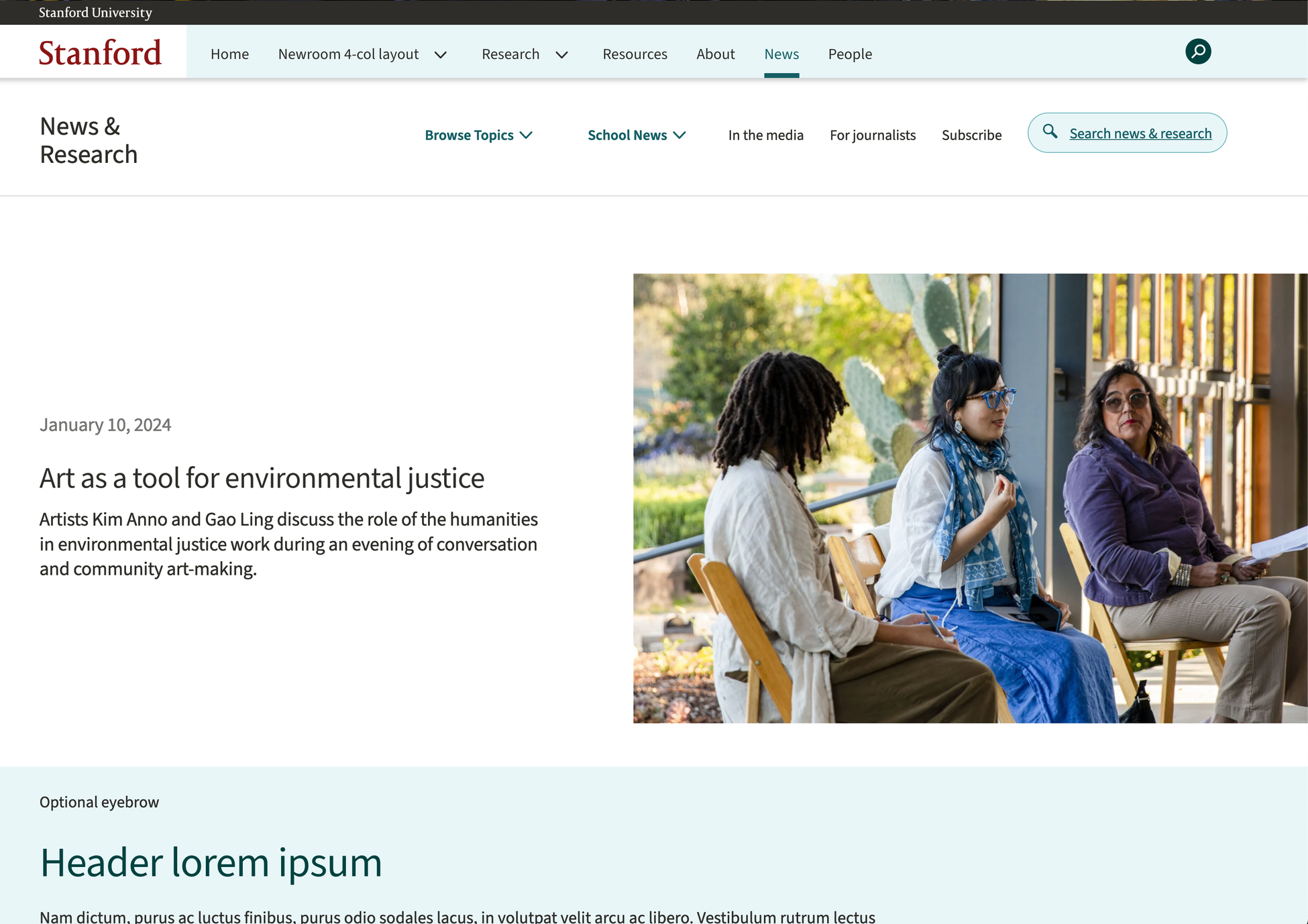
By design, the Newsroom landing page design has no visible Heading 1 (Page Title). A sighted user will not have an issue navigating such a page because of the visual clues. For a person who depends on a screen reader, extra information needs to be added to make the page look like the design and be accessible.
Steps
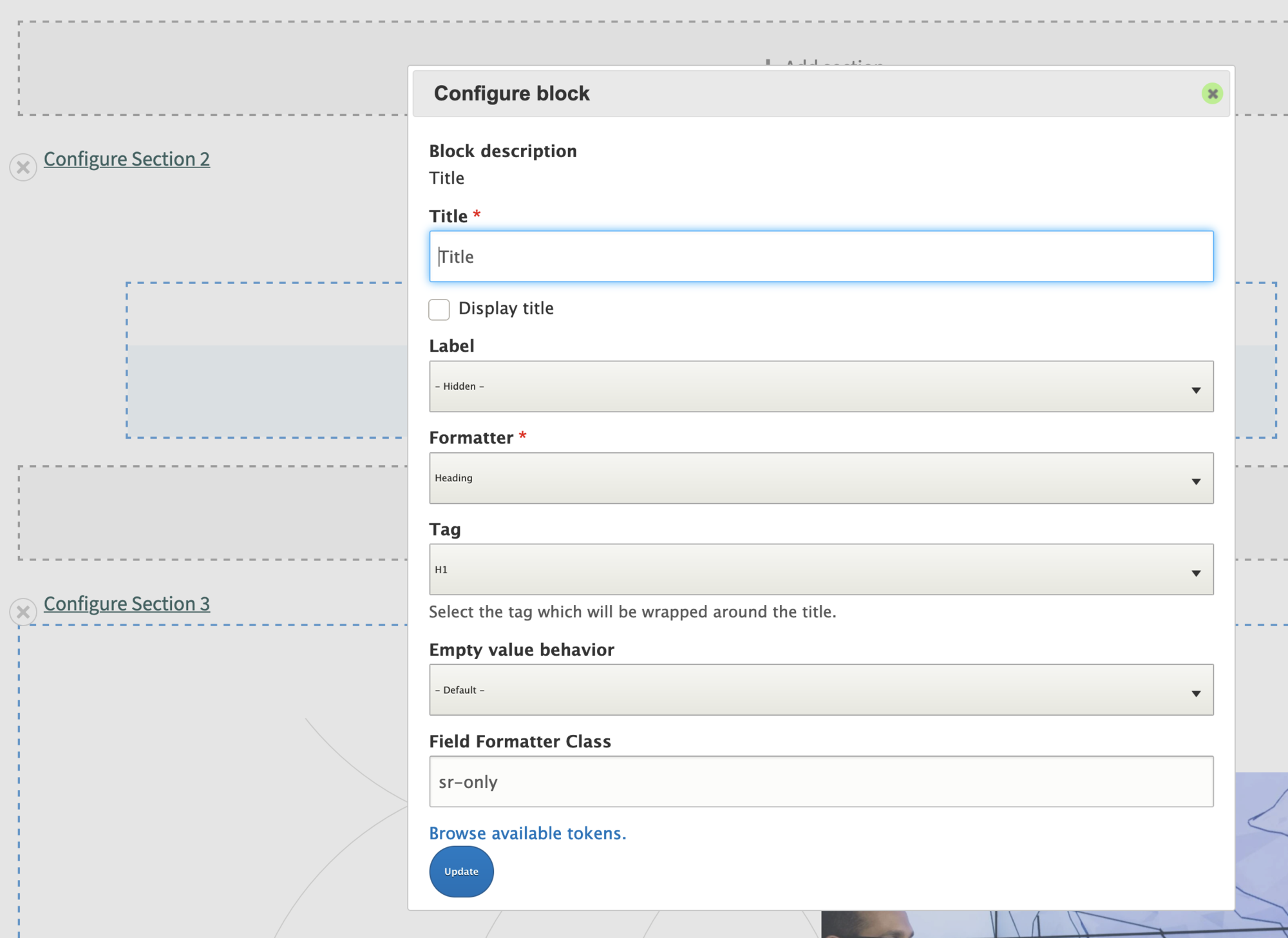
- On the landing page, click on Layout (far right upper blue button) and look for the title of the page that is displayed. Example: News & Research.
- On the right side of that section, hover over the pencil icon (far right side) and click Configure.
- NOTE: Only edit this page and not all the pages of this content type.
- In Field Formatter Class, add the class name sr-only.
- Click the blue Update button.
- View the page and verify there is no visible heading.
Examples
Setting up the News & Event menu
The News & event menu is a separate menu from the main top navigation. It is meant for specific News & event sections for this part of the website.
Enabling the menu
- Go to Configuration > System > SDSS Site Settings
- Check the box for Show Newsroom Menu.
- NOTE: If you want to create all the menu items first and turn them on later, skip this step until you are ready to launch.
- Enter a Newsroom label (i.e. News & Events - this is what will display) and click Save.
Creating Menu items
- Go to: Structure > Menus > News & Research (The original title was News & Research, but it has been changed to display as the title you enter above. What you see behind the scenes is News & Research).
- Click Add link.
- Add the Menu Link title (that will display).
- In the Link field, start typing the link of the page you want to link to. All pages with that title will show in a list. Choose the page you want to link to.
- Scroll to the Parent link section. The first dropdown should stay as News & Research. Create new menu sections as needed.
- Once you create your main menu sections, you can use those to create sub-menu items as well.
- Sub-menu items:
- Click the Add link and add the Menu Link title & Link (see above).
- In the Parent Link section, select the section from the drop-down for the sub-menu you want to add a link under (the ones you just created above).
- Click Save.
- For sub-menu items, you may need to go back into Structure > menu > News and Research, and use the + next to an item to move it up or down to get it where you want in the menu.
Troubleshooting
Please note that if you change the path and remove /news from the path, the newsroom menu will not appear.