
Menus
There are three types of menus that may occasionally need updating.
Main Menu News & Research Footer
Notes:
- The categories for the Top level navigation should stay relatively the same for all Departments & Programs.
- All landing pages for each Top level navigation (with the exception of People) are full-width pages allowing you to take advantage of theming functionality like background row color. This is under Layout Options (tabs at bottom of page), and style is Full width.
- All sub-level pages under the Top level nav (i.e. Left side navigation menu items), have a Layout Options (tabs at bottom of page), default style of -None-, which allows the Left side nav to display.
Main menu
The main menu houses all your top level and left navigation menu items. There are a couple ways to add items to the main & left nav menus:
From the Structure Menu
To add a link to a top or left menu:
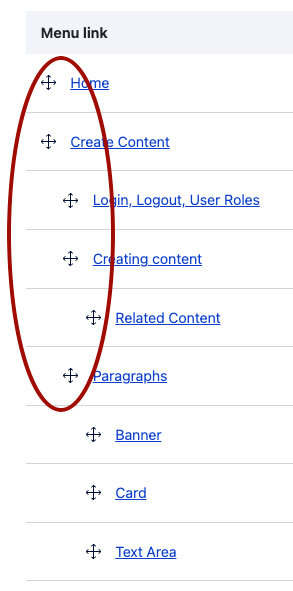
- Go to Structure > Menus > Main Navigation. This page contains all the Top & Left Side menu items.
- You can use the + arrows on the left to move menu items up & down or nest them.
- To Add a new menu item to any of these sections, click on +Add link (blue button).
- Enter the Menu Link Title.
- Link - Start typing the title of the page you want to link to (if it's onsite), all the pages that have those words in the title will appear. Choose the one you want and a number will appear next to it (For example - People (176)).
- This links your new menu item directly to the page. If that page ever moves someplace else on the site (i.e. another section), the link will not break.
- If the link is offsite, enter the full URL.
- Leave the 'Enabled' checkbox checked.
- Under Menu link weight:

- If this link should be under a sub-level (i.e. a left navigation item):
- Find the Parent link section (usually right side)

- Leave <Main navigation> as is (this is the top navigation)
- From the Please select dropdown, choose the next level menu item this should be placed under.
- As you select an item from this menu and there are more menu items under that particular menu item, another Please select dropdown will appear.
- Keep selecting the sub-menus until you find the right place for your new item.
- Once you found the page or entered the URL, click Save at the bottom. This will bring you back to the main navigation menu.
- Your new menu item should be in the correct place here.
Directly on a Page
On every Basic Page there is the option to add this page to a menu. This is the easiest way to add a page to a menu. This option is found towards the bottom of the page above the Save button.
- Edit your page (or scroll to the bottom of your new page in edit mode).
- Click on the Menu settings tab.
- Check the box for Provide a menu link.
- Enter the Menu link title.
- Under Parent link, select section you want your link in.
- If you need this page to be a sub-link select an option from the drop down to the right.
- Click Save.
- See above for more info on Parent Link.
News & Research
This menu is specifically for the News & Events section of the main Sustainability website. If you choose to use this, another sub-menu will be added underneath your main navigation, but only when you go to the News & Events section of the website.
Note: The Menu name is News & Research, but the page title was changed post-launch to News & Events. You can rename this section if you want. You will see both terms in this guide.
Footer
You can find details on adding & editing the links in your footer under Configure settings.